Row-level security (RLS) is a fine-grained access control mechanism that restricts which rows of data a user can access within a table. This is implemented using the Row Access Policy.
This is a schema-level object that secures Snowflake database objects (e.g. Tables or Views) and determines which rows should be visible to users based on their role or other dynamic context.
It enables fine-grained access control by dynamically filtering data at query time, using conditional expressions and context functions (such as CURRENT_ROLE(), SESSION_USER(), or other Snowflake identity functions).
Creating a Snowflake Row Access Policy in PlainID
Ensure that your Snowflake application in the Orchestration Workspace is switched to Manage mode to start building your Row-level Policy in the Policy catalog section. See Managing POPs for more information on how to change the Policy Orchestration Point (POP) Mode.
Row Access Policies in PlainID can be created using the following methods:
- Wizard
- Code
- Native
For more information, refer to Creating Policies.
To create a Row Access Policy with the Policy Wizard:
-
Input the Policy Details. For more information, refer to the Creating Policies article
-
Select Use Policy For SaaS Applications and select the Snowflake application.
-
Input the Snowflake POP Details specific to the vendor policy:
-
Under the Vendor Policy Kind dropdown, select Row Access Policy. (Required)
-
Enter a Vendor Policy Name, a unique name for the Policy that will appear in the Snowflake vendor. (Required)
Note: The same name can be used across multiple PlainID Policies to define multiple logic statements within a single Snowflake Row Access Policy. -
Under the Vendor Policy ID, note that the ID is automatically generated. It is the ID used in Policy management operations like deploy, update, and override.
-
Define the Vendor Policy Order, which relates to the execution order for the logical case statement within the same Vendor Policy ID. (Required)
- The Default value is 1. Use this field when enforcing multiple logic conditions for different Identity Groups within the same Policy.
-
Enter a Comment, add any additional information or clarifications about your Policy. (Optional)
-
Under Database, select the Snowflake database where the Policy will be deployed.
-
Under Schema, select the schema within the database where the Policy resides.
-
Input an Owner, provide the POP Snowflake role used to manage the Policy.
-
-
Click Continue.
Who Section
In the Who section, you assign Row-level access by creating a new Dynamic Group or selecting an existing one. A single Policy can evaluate multiple Dynamic Groups (OR relationship between them), giving you flexibility in defining access control logic. Select Dynamic Groups associated with Identity Attributes defined in your POP.
To apply your Policy logic to all users, you can connect the default All Users Dynamic Group.
Dynamic Groups are defined using Snowflake identity functions such as CURRENT_USER(), CURRENT_ROLE(), IS_ROLE_IN_SESSION(), and CURRENT_SECONDARY_ROLES(). You can use multiple identity functions within the same group to refine access.
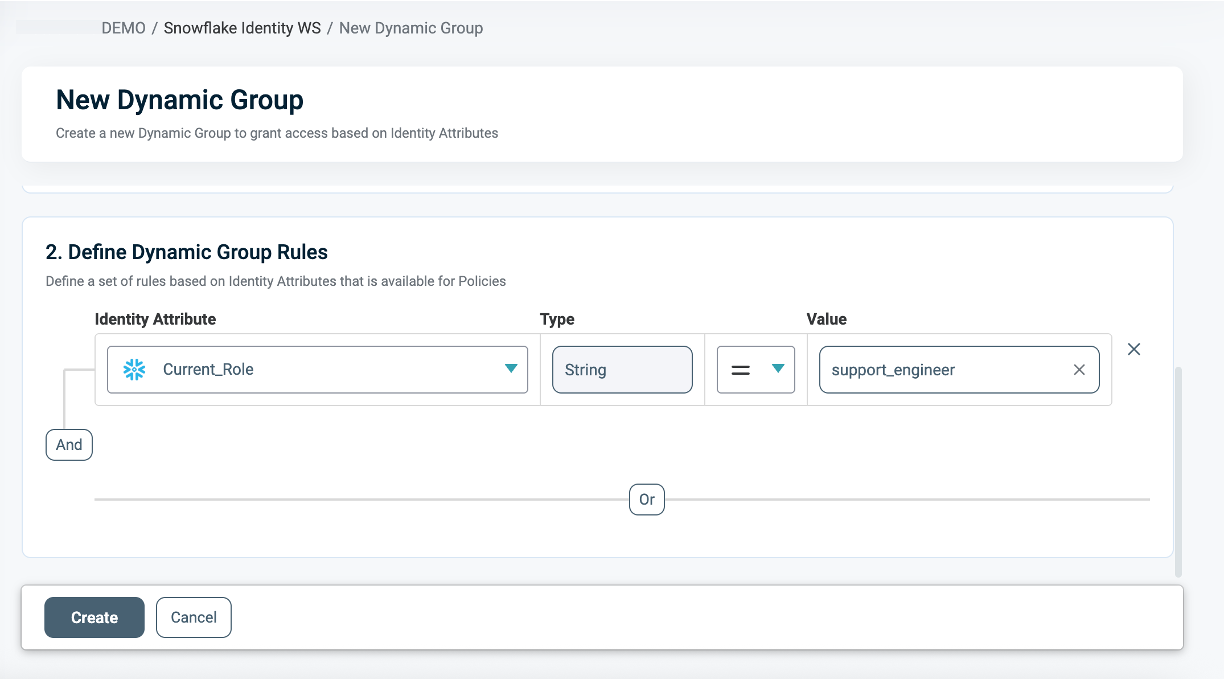
For information on how to create a Dynamic Group, see Managing Dynamic Groups.
What Section
In the What section, you can define Row-level access through your Asset Types.
To apply different row filtering rules for different roles, groups, or context conditions, use the same vendor policy name across multiple PlainID Row Access Policies.
For more details on Asset Types, refer to Managing Asset Types.
To define access, you are required to connect the following Asset Types to a Policy:
- Click Add Asset Type. Ensure that your Asset Type meets the Asset Types for Row Level Requirements.
-
From the dropdown, select the Asset Type that represents the protected table structure and defines the policy arguments.
- Only one Asset Type can be selected in a single Row Access Policy.
-
Select existing Rulesets for your policy logic or create a new one. A Policy can include multiple Rulesets (OR relationship between them).
- See Defining a Ruleset for Row-level Filtering to learn how to create a new ruleset.
-
Click Save.
- Click Add Asset Type. Add Table/View Assets.
-
From the dropdown, select the Table/View Asset Type that represents the protected Tables or Views.
-
Select the Table or View Assets to associate with the policy.
- One or more assets can be selected.
- Only one Table/View Asset Type can be added per policy.
-
Click Save.
The Table/View Asset Type must correspond to the table mapping defined in the selected Asset Type.
This means that the discovered table or view assets selected for the policy must match the table structure defined as part of the Asset Type configuration.
This ensures that the policy arguments and ruleset logic defined in the Asset Type can be correctly translated and applied to the selected protected tables or views.
This association enables the same policy template to be reused across similar data assets while ensuring that only the mappings relevant to the selected protected assets are used during translation.
Asset Types for Row-Level Requirements
Each Row Access Policy must be associated with one or more protected Table/View assets. These assets represent the actual discovered tables or views secured by the policy. Iceberg Tables are also supported as part of the Table and View Assets. Ensure that you have the correct permissions by referring to the Snowflake Setup article.
A Policy may be associated with:
- A single table
- Multiple tables
- Multiple views
- A combination of tables and views
Mappings defined can be reused across multiple similar tables or Views. During policy translation, PlainID scopes the mappings based on the protected Table/View assets associated with the policy.
This means that only mappings relevant to the policy’s connected table(s) or view(s) are used.
Ensure that your Asset Type/s meet the following requirements:
-
Table Mapping
To set Table Mapping:- In the Policies Workspace (formerly Authorization Workspace), click on the Assets & Conditions tab.
- Click on the relevant Asset.
Refer to Managing Asset Types to learn how to create or edit an Asset Type.
- Ensure that "Is used for data filtering?" is enabled.
- Select Set Table Mapping to define the logical-to-physical mapping between the Asset Type and the physical Snowflake Tables or Views.
-
These mappings are reusable and can support multiple policies.
-
The mapping must match the Table/View assets that may be used in the policy
-
Only the Table/View assets explicitly selected in the Policy are protected by the Row Access Policy.
The mapping must include the fully qualified path to the table or view, following the format in upper-case letters:
DB_NAME.SCHEMA_NAME.TABLE_NAME. These mappings are used during translation only when they match the table or view assets connected to the policy.
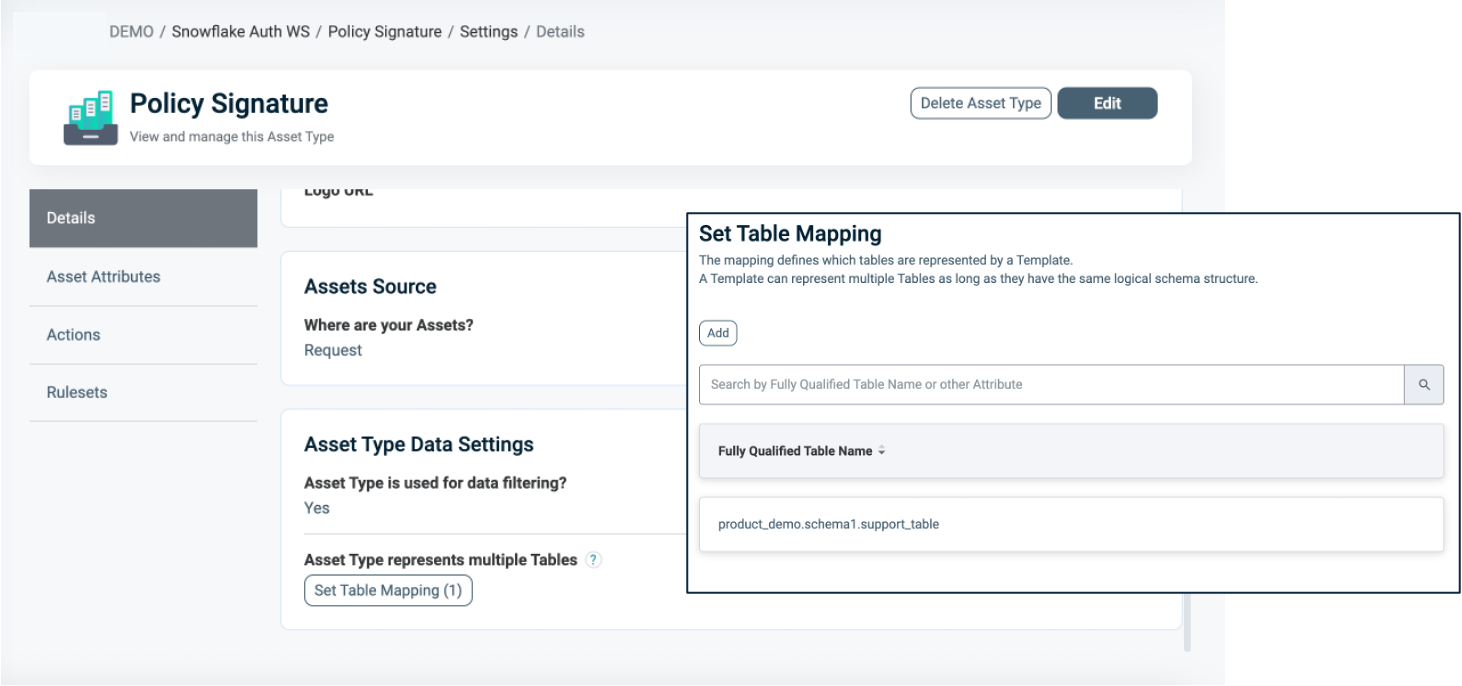
For more information about Table Mapping, refer to Dynamic Data Mapping.
Table/View Asset Type Prerequisites
The Table/View Asset Type is automatically generated when the Snowflake Policy Orchestration Point (POP) is created. It represents the discovered Snowflake tables and views that can be protected by Row Access Policies.
To use Table/View Assets in a Row Access Policy, the selected Asset Type must already be configured with a valid Table Mapping. This mapping defines the relationship between the logical Asset Type used in the policy and the physical path of Snowflake tables or views.
Table/View Assets
Assets appear in the Assets section within the Asset type and are discovered from Snowflake. Each asset represents a specific physical table or view.
When configuring a Row Access Policy, you select one or more of these discovered Table/View Assets to define which objects the policy protects.
Only the tables or views explicitly selected in the policy are secured by the Row Access Policy.
In order to use Table/View Assets within a Row Access Policy, the Asset Type’s Table Mapping must be predefined correctly. During translation, only mappings relevant to the selected protected Table/View Assets are used.
- Attribute Mapping
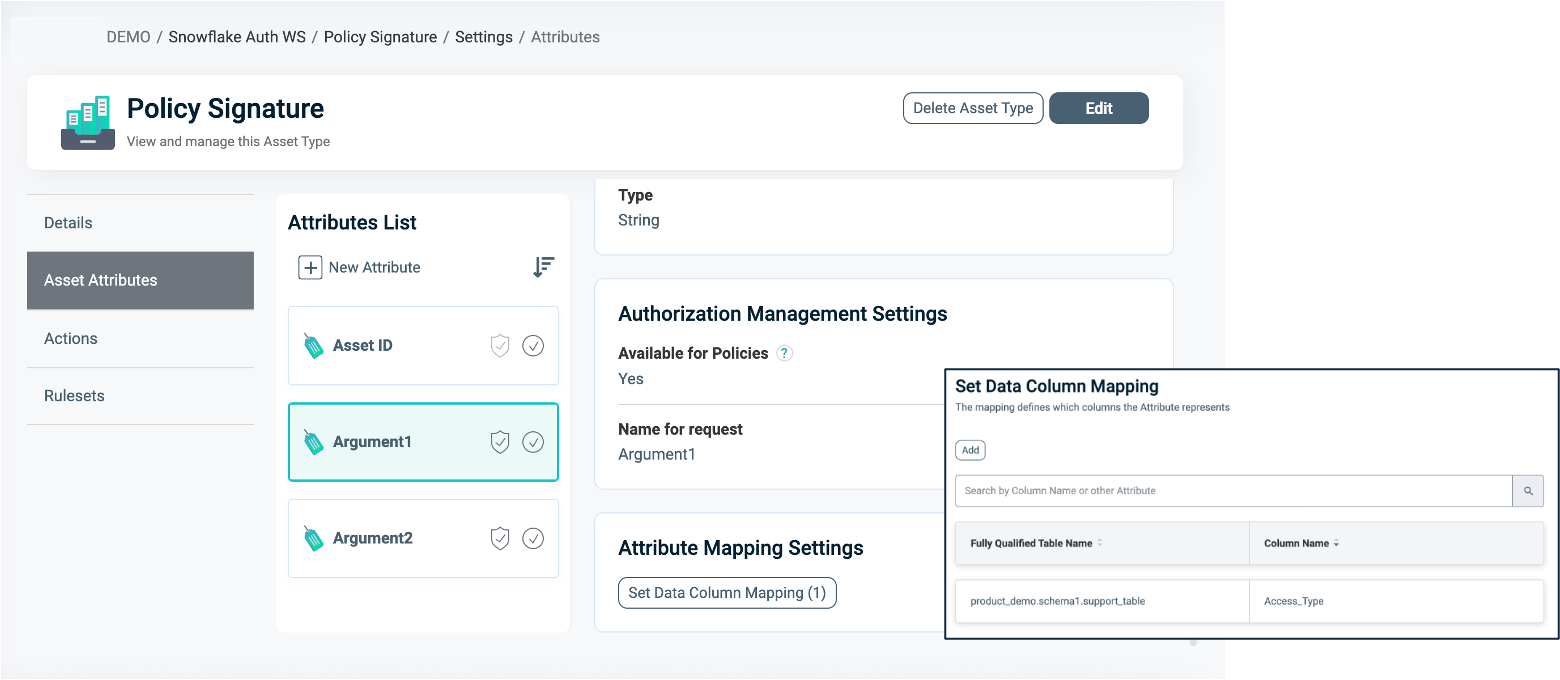
To set Attribute Mapping:- Choose an existing Attribute or create a new one to use in your filtering logic.
Refer to Managing Asset Attributes for more details. - Define the data type (for example, String, Numeric).
- Enable Available for Policies = Yes. These Attributes act as placeholders for filtering conditions.
- Click Set Data Column Mapping to map the logical Attributes to one or more physical Snowflake column/s.
- Choose an existing Attribute or create a new one to use in your filtering logic.
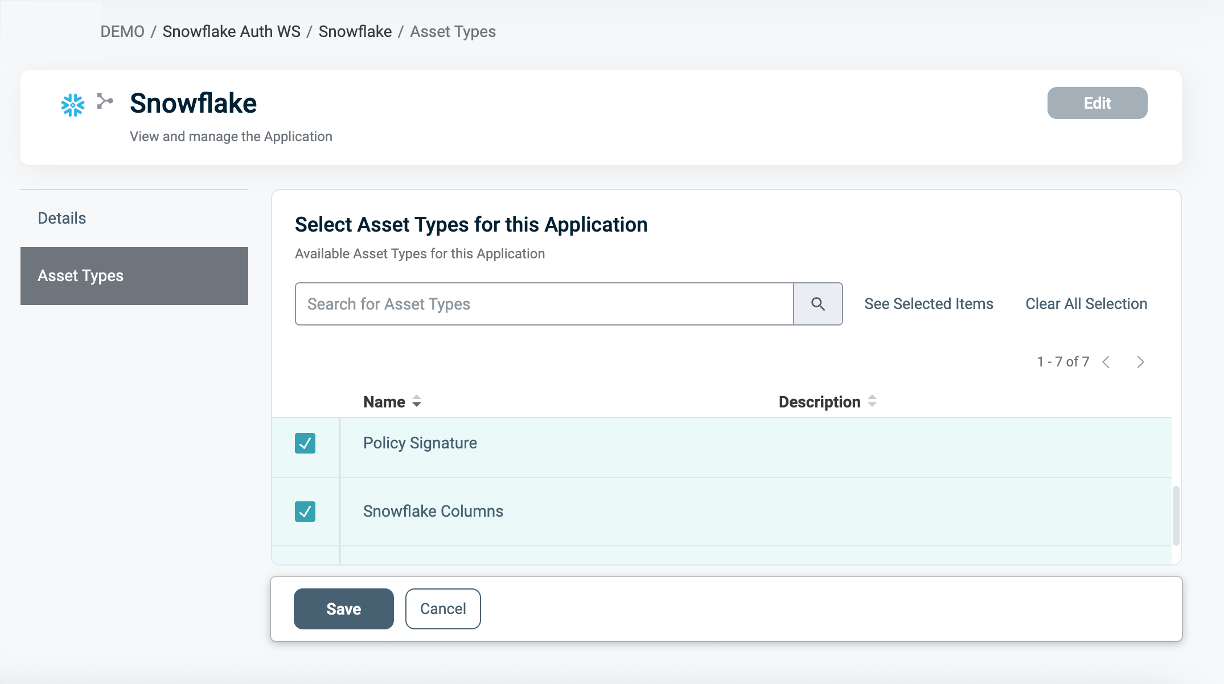
To connect an Asset Type with the Snowflake Application:
- Once the Asset Type is created, open the Snowflake application.
- Navigate to the Asset Types tab.
- Click Edit.
- Select the relevant Asset Types you want to associate with the Snowflake application.
Defining a Ruleset for Row-level Filtering
To define a Ruleset:
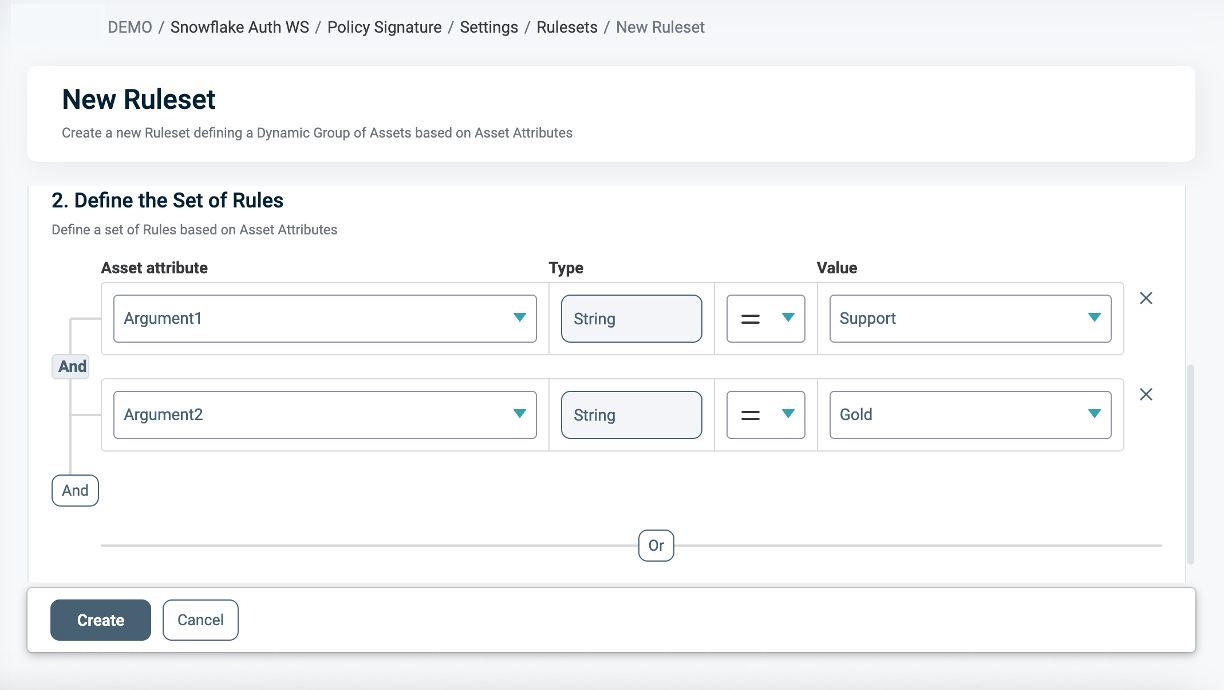
- In the Asset type within the Ruleset tab, define the Row-level filtering logic using the Asset Attributes you created (for example,
Access_Type = 'support' AND Tier = 'Gold'). - You can use Snowflake tables as an external Identity Source for contextual or dynamic rules (for example,
Department = user.department). See our documentation on Managing Identity Source tables for more information. - Use PlainID's flexible logic to combine operators (
=,!=,>,IN,IS NULL,IS NOT NULL) with complex AND/OR relationships.
Discovery Behavior
As part of discovery, PlainID creates the Asset Type and connects the relevant Ruleset. In addition, the system discovers and associates one or more Table/View Assets that represent the protected objects. These discovered assets are available for selection in the Table/View Asset Type and are associated with the policy based on the defined mappings.
Notes:
- A policy can be associated with one or multiple protected assets.
- Both tables and views are supported.
- The term table in this article may refer to either a table or a view, depending on the discovered object.
When Section
In the When section, you define the Conditions that provide contextual identity data for your Policy, which determine when the Policy applies.
To define a Condition:
-
- Select an existing Condition or create a new one. A Policy can include multiple Conditions, combined with logical AND meaning all Conditions must be met for the Policy to grant access. Ensure that you select Conditions from Identity Attributes linked to the POP’s Identity Source.
- See Managing Conditions to learn how to create a new Identity Attribute Condition.
- Ensure that the Condition meets the Conditions for Row-Level Requirements.
- Click Save.
Conditions for Row-Level Requirements
- Ensure that an Identity Source table is defined within your Policy Orchestration Point (POP).
- Only Identity Attribute Conditions are supported.
- Use an Identity Attribute that is mapped to one of the additional Identity Sources associated with the selected POP. For more details, refer to our documentation on Managing Identity Source Tables article.
- Within a single Condition, you can only use Attributes from one Source.
Deploying the Policy
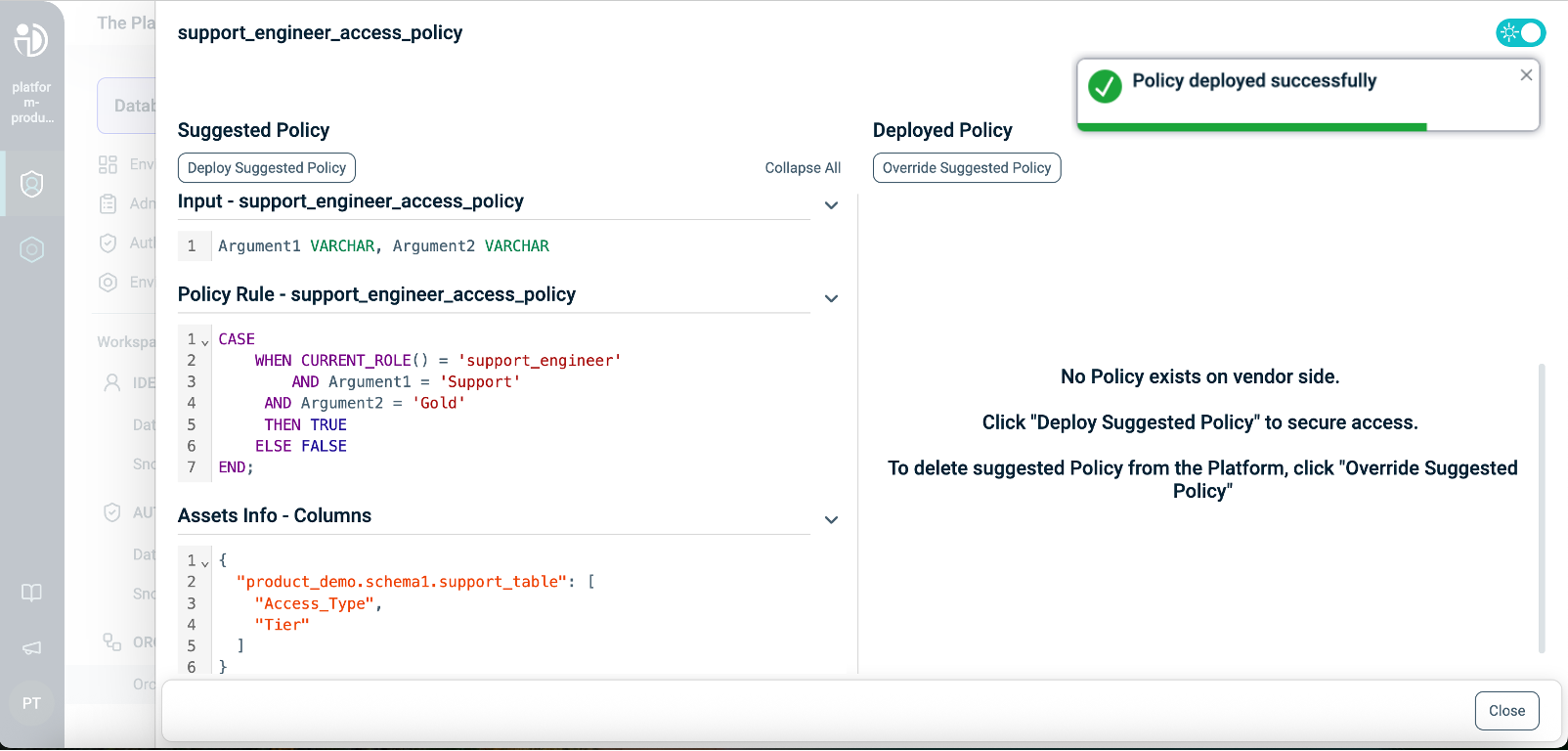
Once complete, navigate to the Orchestration Workspace and deploy the Policy to Snowflake.
Snowflake enforces the access decision based on the Row-level filtering you've defined in the PlainID platform.
Snowflake Row Access Policy SQL Structure
This table describes the Snowflake Row Access Policy components in SQL and compares them to their equivalents in PlainID to help you translate and build your policies easily within the PlainID Platform.
Policy Syntax Table
| Snowflake terminology | Snowflake Syntax | Description | PlainID terminology |
|---|---|---|---|
| Policy Declaration | CREATE OR REPLACE ROW ACCESS POLICY <policy_name> |
Defines the Policy name and type (Row-level access). Used to declare or replace an existing Row Access Policy. | Vendor Policy Name, Vendor Policy Kind |
| Policy Signature | AS (Argument1 VARCHAR, Argument2 NUMBER...) RETURNS BOOLEAN |
Declares the Policy's input arguments and return type. Arguments are used in the Policy logic to determine access. Returns a BOOLEAN value indicating row visibility. | Policy Signature mapped to Asset Type. Each argument that is used within the Policy logic is created as an Asset Attribute. |
| Policy Logic | WHEN... |
Incorporates Snowflake identity functions: CURRENT_ROLE(), CURRENT_USER(), IS_ROLE_IN_SESSION(), CURRENT_SECONDARY_ROLES(). This determines who should receive access in a given context. |
Dynamic Group |
CASE... |
Use SQL expressions such as CASE statements to define the access logic used to evaluate row visibility. | Policy logic uses the Policy arguments mapped into Rulesets, which can be dynamic (based on external identity data) or static (using fixed values). | |
EXISTS (SELECT ... FROM... WHERE...) |
Use SQL subqueries with EXISTS for dynamic, context-based filtering. | Policy logic uses an external table mapped into conditions, where expressions typically compare attributes to static values. Note that a correlation must be defined using one of the Snowflake identity functions (e.g., CURRENT_ROLE(), CURRENT_USER(), IS_ROLE_IN_SESSION()). |
|
| Policy Evaluation | THEN TRUE → Include row, THEN FALSE → Exclude row |
The Policy returns a BOOLEAN for each row: TRUE includes the row in the result set; FALSE excludes it. | PlainID centrally manages the Policy rules and identity context. Snowflake is responsible for the evaluation. |
| Policy Application | ALTER TABLE <TABLE> ADD ROW ACCESS POLICY <POLICY NAME> ON (<COLUMN1>, <COLUMN2>...); |
Applies the Row Access Policy to a specific table and columns. The same Policy can be reused across multiple tables. | Defined in the Asset Type Data Settings. In PlainID, the reusable policy signature is defined by the Signature Asset Type, while the protected Asset is defined by the Table/View asset associated with the policy. |
Row Access Policy Example
This example grants support_engineer access only to rows where Access_Type = 'support' and Tier = 'Gold' using a Row Access Policy.
CREATE OR REPLACE ROW ACCESS POLICY support_engineer_access_policy
AS (Access_Type VARCHAR, Tier VARCHAR) RETURNS BOOLEAN ->
CASE
  WHEN CURRENT_ROLE() = 'support_engineer'
  AND Access_Type = 'support' AND Tier= 'Gold'
  THEN TRUE
  ELSE FALSE
END;

ALTER TABLE sales_table ADD ROW ACCESS POLICY support_engineer_access_policy
ON (Access_Type,Tier);
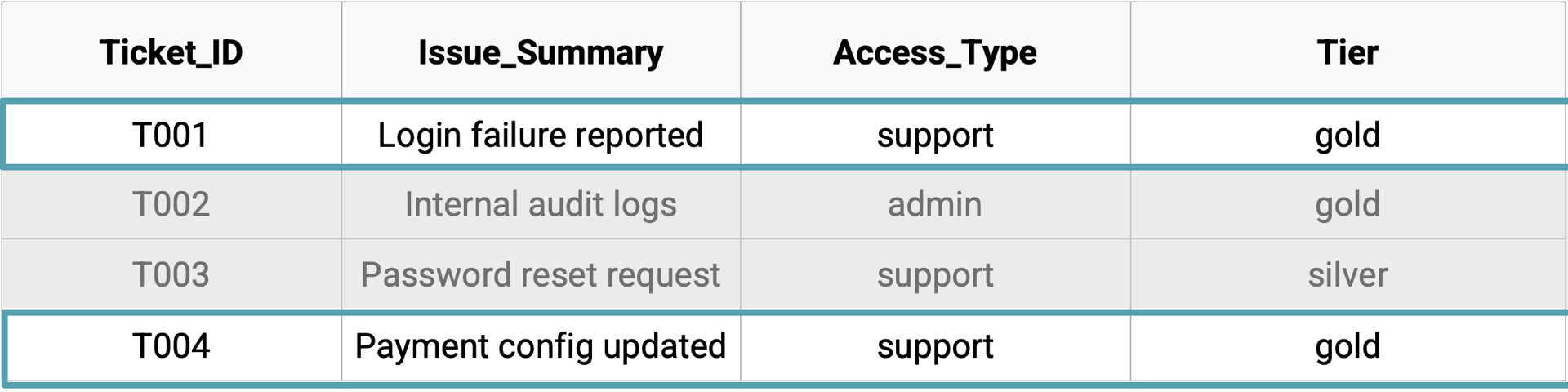
For the current role, support_manager, the Policy allows access only to rows where Ticket_ID=T001 and T004.