Tag-based Masking enables organizations to enforce data masking policies across multiple columns and objects in a scalable, classification-driven manner.
In Snowflake, tag-based masking is implemented by associating a masking policy with a Tag, rather than directly attaching the policy to an individual column.
A Tag-based Masking configuration allows administrators to define a masking policy once and bind it to a tag at the schema level. Any column—across tables or views—that is assigned that tag automatically inherits the masking behavior. The masking is applied dynamically at query time, and the logic is evaluated using conditional expressions and Snowflake context functions such as CURRENT_ROLE(), CURRENT_USER(), or IS_ROLE_IN_SESSION().
This model decouples masking logic from individual column definitions and enables centralized enforcement across multiple columns, promoting consistent protection aligned with data classification and governance strategies.
Dynamic Data Masking
A Tag-based Masking Policy uses Snowflake Tags to define reusable, scalable masking rules.
A Masking policy is assigned to a tag, and any column carrying that tag automatically applies the associated masking logic across all tables and schemas.
Tag-based masking policies support scalable, classification-driven governance, simplify lifecycle management, and enable consistent enforcement for compliance with regulatory requirements.
Use Case Example
A company tags columns such as Customer_Email, Customer_Name, and other sensitive fields across multiple schemas using PII = 'High'.
It then applies a tag-based masking policy with contextual rules so:
- Standard analysts receive masked values
- Support agents receive partially visible values
- A small privileged group has full visibility
Default Masking Behavior
PlainID automatically generates the Default Masking Behavior Policy (Policy ID: default_masking_behavior) when you create a POP. This Policy defines how the Platform handles data by default when an identity doesn't meet any Policy Conditions.
You can configure the default masking behavior globally at the POP level, or override it for an individual Policy using the Default masking behavior toggle in the Policy Wizard:
- Mask: The Platform masks the data by default when an identity doesn't meet any Policy Conditions.
- Show: The actual data remains visible by default.
The Policy-level toggle inherits its value from the POP-level setting. If you don't define a default masking behavior, the Platform uses Show. See Managing POPs for more information on the POP-level setting.
When you select Mask, PlainID applies the auto-generated Default Masking Behavior Policy to enforce the configured masking behavior.
Defining Default Masking Instructions
The Default Masking Behavior Policy includes four default masking Actions for each supported data type, covering both the Tags and Columns Asset Types: Boolean, Date, Numeric (integer), and String.
You can edit these Action values to change the default masking instruction that PlainID applies across all Policies set to Mask.
You can configure this setting through the Policy Wizard and through the Management API when you create or modify a POP, and when you create, read, update, or delete a Policy.
Creating a Snowflake Masking Policy
Ensure that your Snowflake Application in Orchestration is switched to Manage mode to start building your Masking Policy in the Policy catalog section. See Managing POPs for more information on how to change the POP Mode.
Masking Policies in PlainID can be created using the following methods:
- Wizard
- Code
- Native
For more information, refer to Creating Policies.
To create a Masking Policy with the Policy Wizard:
-
Input the Policy Details. For more information, refer to the Creating Policies article
-
Select Use Policy For SaaS Applications and select the Snowflake application.
-
Input the Snowflake POP Details specific to the vendor Policy:
- Under the Vendor Policy Kind dropdown, select Masking Policy. (Required)
- Under Default masking behavior, choose Show or Mask. This setting defines what the Policy returns to identities that don't match any Policy condition. See Default Masking Behavior below for details. (Required, available only when Vendor Policy Kind is Masking Policy.)
- The toggle inherits its value from the POP-level Default masking behavior setting, but you can change it for this Policy.
- Enter a Vendor Policy Name, a unique name for the Policy that will appear in the Snowflake vendor. (Required)
- Note: The same name can be used across multiple PlainID Policies to define multiple logic statements within a single Snowflake Masking Policy.
- Under the Vendor Policy ID, note that the ID is automatically generated. It is the ID used in Policy management operations like deploy, update, and override.
- Define the Vendor Policy Order, which relates to the execution order for the logical case statement within the same Vendor Policy ID. (Required).
- The Default value is 1. Use this field when enforcing multiple logic conditions for different Identity Groups within the same Policy.
- Enter a Comment, add any additional information or clarifications about your Policy. (Optional)
- Under Database, select the Snowflake database where the Policy will be deployed.
- Under Schema, select the schema within the database where the Policy resides.
- Input an Owner, provide the POP Snowflake role used to manage the Policy.
-
Click Continue.
Iceberg Tables are also supported as part of the Table and View Assets. Ensure that you have the correct permissions by referring to the Snowflake Setup article.
Who Section
In the Who section, you can assign Column-level access by creating a new Dynamic Group or selecting an existing one. A single Policy can evaluate multiple Dynamic Groups (OR relationship between them), giving you flexibility in defining access control logic. Select Dynamic Groups associated with Identity Attributes defined in your POP.
Dynamic Groups are defined using Snowflake identity functions such as CURRENT_USER(), CURRENT_ROLE(), IS_ROLE_IN_SESSION(), and CURRENT_SECONDARY_ROLES(). You can use multiple Identity functions within the same group to refine access. If you want to apply your Policy logic to all users, you can still connect the default "All Users" Dynamic Group.
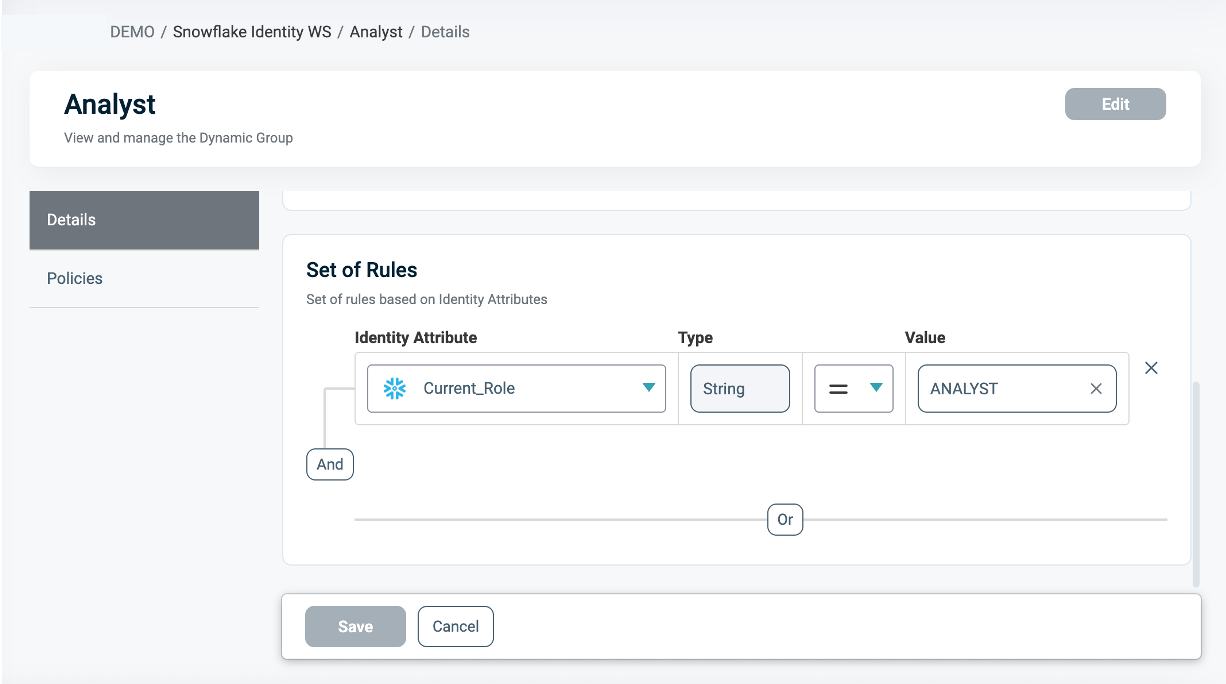
For additional information on how to create a Dynamic group, see Managing Dynamic Groups.
What Section
In the What section, you can define access through your Asset Types if using Conditional Masking for tags.
For more details on Asset Types, refer to Managing Asset Types.
To define access, you are required to define the following Asset Types:
- Click Add Asset Type (for Policy Signature).
- From the dropdown, select an Asset Type that defines your Masking Policy logic (Policy Signature. See Policy Syntax Table for more information.)
- Only one Asset Type can be selected in a single Masking Policy.
- Select existing Rulesets for your policy logic or create a new one. A Policy can include multiple Rulesets (OR relationship between them).
- See Defining a Ruleset for Masking Policies for more information.
- Click Save.
- From the dropdown, select an Asset Type that defines your Masking Policy logic (Policy Signature. See Policy Syntax Table for more information.)
- To add Snowflake Tag Asset Types, click Add Asset Type.
- From the dropdown, select Tags Asset Type. For more information, see the Snowflake Tags Asset Type section.
- Select the Masking action, which defines how data is masked. For more information, refer to the Actions as Masking Instructions section.
- Select the Assets to mask.
- A single Masking Policy can be applied to one or multiple Asset tags.
- Click Save.
To apply different masking rules for different roles, groups, or context conditions, use the same Vendor Policy Name across multiple PlainID Masking Policies on the same asset.
Ensure that all PlainID Policies referencing the same vendor policy ID use the same Signature Asset Type. Within that shared Asset Type, each ruleset may use different Asset Attributes as needed for its specific logic. Also, ensure that you keep the associated Asset/s consistent across all linked Tag Asset Types.
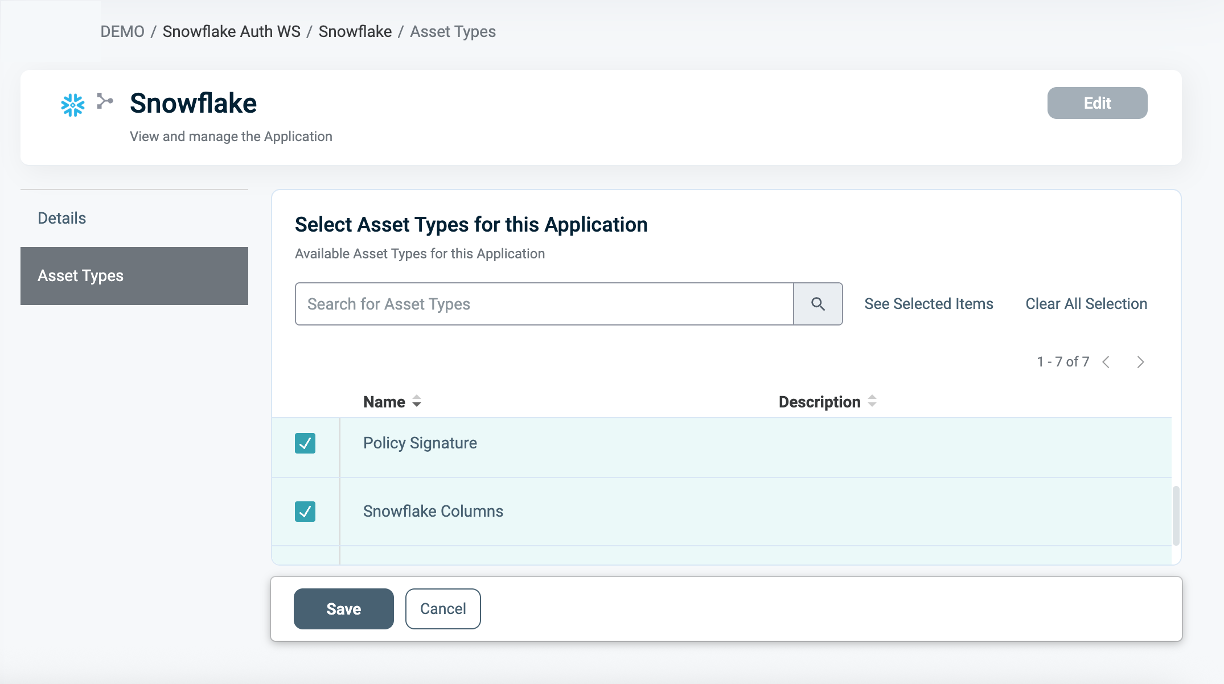
To connect an Asset Type with the Snowflake Application:
- Once the Asset Type is created, open the Snowflake Application in your Integrations Workspace (formerly Orchestration Workspace) .
- Navigate to the Asset Types tab.
- Click Edit.
- Select the relevant Asset Types you want to associate with the Snowflake application.
Defining a Ruleset for Masking Policies
To define a Ruleset:
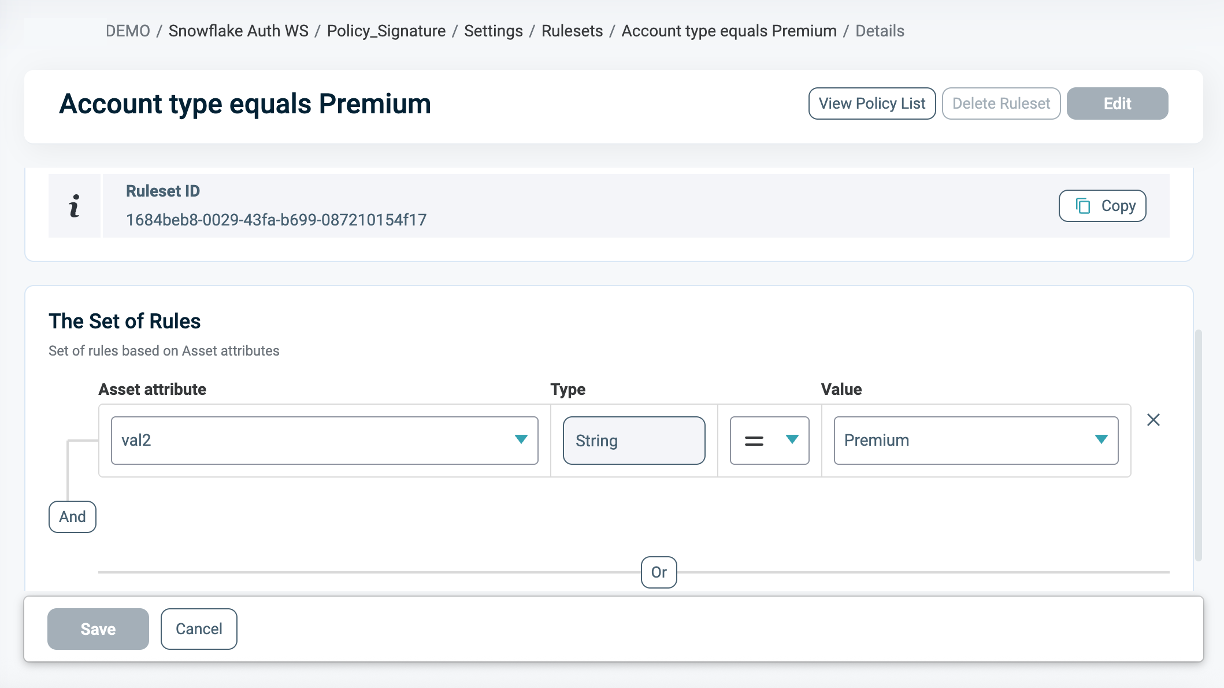
- In the Asset type within the Ruleset tab, define the Masking logic using the Asset Attributes you created (for example,
Account_Level = 'Premium').
You can use Snowflake tables as an external Identity Source for contextual or dynamic rules (for example, Department = user.department). See our documentation on Managing Identity Source Tables for more information.
- Use PlainID's logic to combine operators (
=,!=,>,IN, etc.) with complex AND/OR relationships.
Protecting Column Data Based on Column Tag Values
A masking policy can use conditions that protect column data based on the string value of a tag assigned to the column or to the table that contains it.
For example:
- A Column tag rule answers: How is this column classified? (for example,
Public,Internal,Confidential) - A Table tag rule answers: How is the table that contains this column classified? This can represent an Environment (
DEV/TEST/PROD), a business domain (HR/Finance), or a similar classification.
Note: In Learn Mode, the Platform discovers policies that use column or table tag rules as Native Policies.
You define these tag rules as Rulesets within the Tags Snowflake Asset Type.
To create a new Ruleset:
- Following the steps at the beginning of the What section, click Create Ruleset, or open an existing one.
- Enter the Ruleset details. When you define the set of rules, select your Tag Asset Attribute from the dropdown and enter the value.
- You can only define Tag Asset Type as Rulesets within the Tags Snowflake Asset Type.
- Click AND, then click Expression to add another condition.
- In the new Ruleset definition, it is required to select either a Column Tag Value or Table Tag Value from the Asset Attribute dropdown, and enter a value that matches what you set in your Snowflake environment.
- A
Tag Nameexpression identifies the tag itself. The Tag Name doesn't need to match the tag attached to the Policy as an Asset, and supports only the=operator. - At least one
Column Tag ValueorTable Tag Valueexpression: a Tag Name on its own isn't enough. Pair it with a Column tag value, a Table tag value, or both. This field supports all standard operators.
So, when you create a new Ruleset, ensure you combine one or both of the following (using an AND/OR relationship):Tag NameANDColumn Tag ValueTag NameANDTable Tag Value
- A
Note: Snowflake enforces the tag value at query time. Beyond configuring the Ruleset in PlainID, confirm the tag is assigned to the protected column or table in Snowflake, and that its value matches what the Masking Policy expects.
Example Use Case
A company classifies:
-
Columns by sensitivity, using a column tag:
PUBLICCONFIDENTIAL
-
Tables by Environment, using a table tag:
DEVPROD
The Masking Policy applies the following logic:
-
If the table is
DEV, the Policy shows the real value (developers need real data). -
If the table is
PROD:- If the column is
PUBLIC, the Policy shows the value. - If the column is
CONFIDENTIAL, the Policy masks the value.
- If the column is
CASE
    WHEN SYSTEM$GET_TAG_ON_CURRENT_TABLE(
           'GOVERNANCE.ENVIRONMENT'
         ) = 'DEV'
      THEN val

    WHEN SYSTEM$GET_TAG_ON_CURRENT_TABLE(
           'GOVERNANCE.ENVIRONMENT'
         ) = 'PROD'
         AND SYSTEM$GET_TAG_ON_CURRENT_COLUMN(
           'GOVERNANCE.DATA_CLASSIFICATION'
         ) = 'PUBLIC'
      THEN val

    ELSE '********'
END
Asset Types for Tag Masking Policy Requirements
To create a Tag-based masking policy, ensure that your Asset Type/s meet the following requirements:
The Signature Asset Type contains the masking logic enforced by the Policy. To define that logic in your rulesets, create Asset Attributes that match the physical column names. These Attributes correspond to the columns in Snowflake tables that have the tag applied.
Example: to mask PII data, use conditional masking logic based on TYPE = 'Document', then create an Asset Attribute labelled TYPE that is identical to the TYPE column in your Snowflake table.
.png)
Snowflake Tags Asset type
Tag-based Masking Policies in Snowflake can be centrally managed through PlainID using the Snowflake Tags Asset Type. These Policies enable masking logic application based on Snowflake tags rather than on individual columns, supporting scalable and consistent data protection across multiple tables.
Snowflake Tags Assets
Available Tags to use in Policies related to Snowflake appear in the Assets section. PlainID discovers all available tags during the Discovery process and displays them in the Object Side Panel within the Integration Workspace.
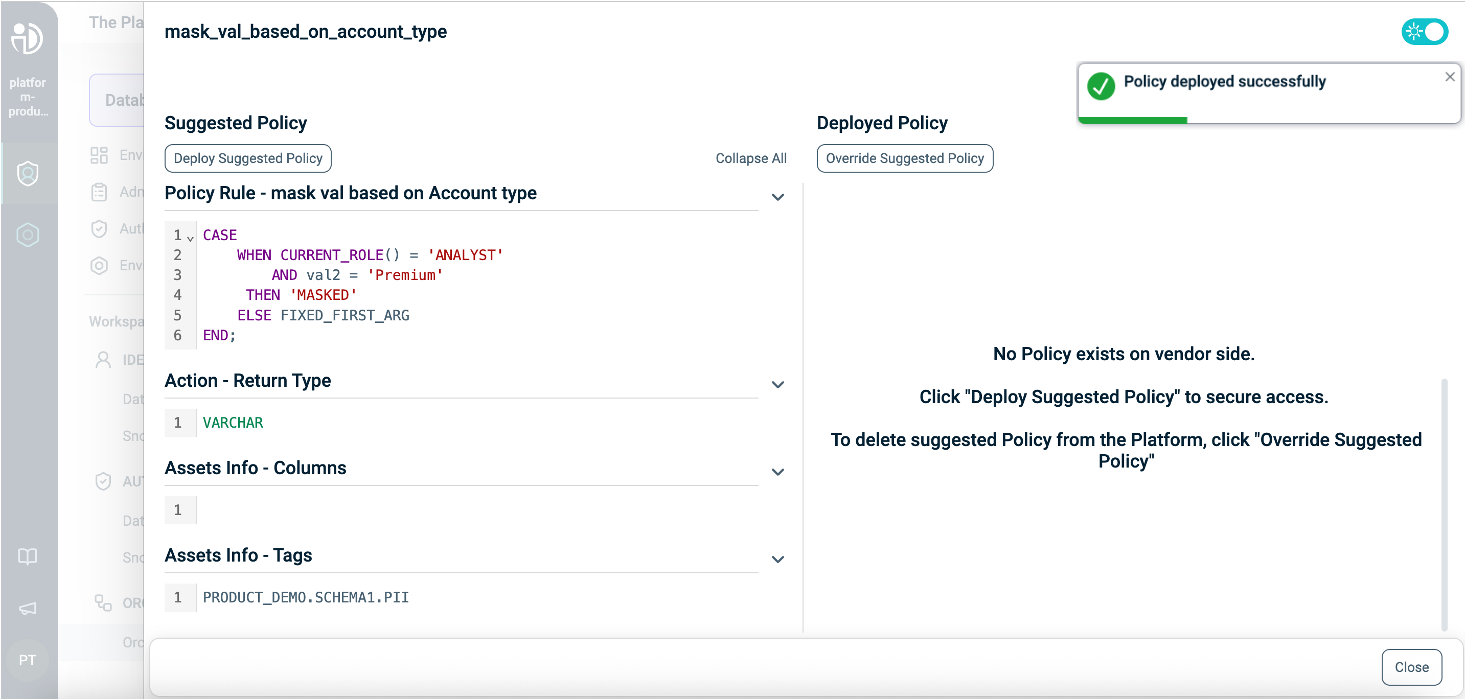
When you associate a tag with a Masking Policy, this tag is applied to your Policy through an argument called FIXED_FIRST_ARG. You can see this argument in the Policy Signature in the Policy Diff side panel.
This argument represents the physical columns' masked value, which is linked to the tag.
Note: PlainID does not create or manage Snowflake objects. Tags must be defined and applied to columns within the Snowflake environment.
.png)
Actions as Masking Instructions
In the Snowflake Tags Asset Type, the Actions tab defines how data is masked when a policy is enforced.
Masking instructions are applied to the selected Assets in your policy.
You can define masking actions in two ways:
- Standard masking actions — specify the masking value or expression directly in PlainID
- Vendor function masking actions — call an existing vendor-native masking function (for example, a Snowflake function)
Masking Action Fields
The following fields are used when defining masking actions:
| Field | Description |
|---|---|
| Action ID | The display name of the masking action |
| Value | The masking value or expression returned by the policy (for example, 'MASKED' or a vendor function expression) |
| Type | The returned masked value data type. This must match the RETURNS type declared in the Snowflake Masking Policy (for example, VARCHAR, NUMBER) |
Standard Masking Actions
Standard masking actions define the masking logic directly within PlainID.
You can either:
- Use a default masking instruction (for example,
Default for Varchar,Default for NUMBER), or - Create a custom masking instruction
Example
| Field | Value |
|---|---|
| Action ID | Mask String |
| Value | 'MASKED' |
| Type | FUNCTION_VARCHAR or FUNCTION_NUMERIC |
Action Type (Function-Based Masking)
When using vendor functions, set the Type field to one of the following:
Function_Varchar– use when the function returns a VARCHAR valueFunction_Numeric– use when the function returns a numeric value
This configuration causes the masking policy to return the specified value when masking is applied.
Using Vendor Functions as Masking Actions
PlainID also supports referencing vendor-native masking functions directly in masking actions.
This capability allows you to reuse existing masking logic defined in the data platform without requiring the function to be discovered or managed as an object within PlainID.
This is useful when:
- Masking logic already exists in the vendor platform
- The masking logic requires complex expressions or reusable functions
- Masking behavior depends on tags or metadata
Note: Ensure you are in Manage Mode to define vendor function masking actions. See Managing POPs for more information.
To define a vendor function Masking Action
- Open your **Policies Workspace (formerly Authorization Workspace) **
- Select the relevant Application
- Click Asset Types
- Hover over the relevant Tag (Asset Type) and click Manage.
- Click Actions
- Create a new Action
Example
PRODUCT_DB.SCHEMA1.STR_MASK_FUNC(
  'STATIC_VALUE',
  SYSTEM$GET_TAG_ON_CURRENT_TAG('SENSITIVITY_TAG')
)
In this example, the masking policy calls the vendor function STR_MASK_FUNC and passes:
- A static value (
'STATIC_VALUE') - The value of the
SENSITIVITY_TAGtag assigned to the current tag context
The function then applies masking logic based on these inputs.
Once the masking action is defined, it can be used in policies to enforce tag-level masking.
When Section
In the When section, you define the Conditions that provide contextual Identity data for your Policy, which determine when the Policy applies.
To define a Condition:
- Select an existing Condition or create a new one.
- A Policy can include multiple Conditions, combined with a logical AND operator, meaning all Conditions must be met in the Policy to grant user access. Ensure that you select Conditions from Identity Attributes linked to the POP's Identity Source.
- See Managing Conditions to learn how to create a new Identity Attribute Condition.
- Ensure that the Condition meets the Conditions for Masking Policy Requirements.
- Click Save.
Conditions for Masking Policy Requirements
- Only Conditions based on Identity Attributes are supported for use in Masking Policies.
- Ensure that an Identity Source table is defined within your Policy Orchestration Point (POP).
- Use an Identity Attribute that is mapped to one of the additional Identity Sources associated with the selected POP. For more details, refer to our documentation on Managing Identity Source Tables.
- Within a single Condition, you can only use Attributes from one Source.
Deploying the Policy
Once complete, navigate to the Integration Workspace and deploy the Policy to Snowflake.
Snowflake enforces the access decision based on the Masking logic defined in the PlainID platform.
Tag-Based Masking Policy Deployment:
Snowflake Masking Policy SQL Structure
This table explains the components of a Snowflake Masking Policy in SQL and compares them to their equivalents in PlainID, helping you translate and build your Policies easily within the PlainID platform.
Policy Syntax Table
| Snowflake terminology | Snowflake Syntax | Description | PlainID terminology |
|---|---|---|---|
| Policy Declaration | CREATE OR REPLACE MASKING POLICY <policy_name> |
Defines the Policy name and type (Masking Policy). Used to declare or replace an existing Masking Policy. | Vendor Policy Name, Vendor Policy Kind |
| Policy Signature | AS (VAL1 VARCHAR, VAL2 NUMBER..) RETURNS VARCHAR |
Declares the Policy's input arguments and return type. Arguments are used in the Policy masking logic. The return type of the Masking Policy must match the data type of its first argument. The first argument is the masked value. | Policy Signature mapped to Asset Type. Each argument that is used within the policy logic is created as an Asset Attribute. |
| Policy Logic | WHEN... |
Incorporates Snowflake identity functions: CURRENT_ROLE(), CURRENT_USER(), IS_ROLE_IN_SESSION(), CURRENT_SECONDARY_ROLES() to determine who should receive access in a given context. |
Dynamic group |
CASE... |
Use SQL expressions such as CASE statements to define the masking logic. | Policy logic uses the Policy arguments mapped into Rulesets, which can be dynamic (based on external identity data) or static (using fixed values). | |
EXISTS (SELECT... FROM... WHERE...) |
Use SQL subqueries with EXISTS SELECT for dynamic, context-based filtering. | Policy logic uses an external table mapped into conditions, where expressions typically compare attributes to static values. Note that a correlation must be defined using one of the Snowflake identity functions (e.g., CURRENT_ROLE(), CURRENT_USER(), IS_ROLE_IN_SESSION()). |
|
| Policy Output | THEN 'MASK' ELSE VAL1 |
Show behavior (default): the masking instruction applies after THEN, and the column value returns after ELSE. |
Action in the Snowflake Tags Asset type. |
THEN 'MASK' ELSE <default masking instruction> |
Mask behavior: the masking instruction applies after THEN, and a default masking instruction returns after ELSE for identities that don't match any condition. |
Action in the Snowflake Tags Asset type (THEN), Action from the Default Masking Behavior Policy (ELSE). |
|
| Policy Application | Apply to a tag: ALTER TAG <tag> SET MASKING POLICY <policy>; |
Applies the Masking Policy to specific tags. The same Policy can be reused across multiple tags for consistent masking behavior. | The Tag-based masking is reflected as Assets in the Tag-Asset Type. |