The Identities Workspace (formerly Identity Workspace) is the logical boundary where Identity definitions are modeled, managed, and governed. It centralizes Dynamic Groups, Permissions, and Identity data originating from multiple authoritative systems. Because enterprises often manage multiple Identity domains, such as internal users, external users, and service accounts, Identity information may be sourced from several systems. The Identities Workspace abstracts these sources into a unified framework that supports consistent and scalable Policy enforcement within the PlainID Authorization Platform.
See the Identity Workspace documention for more information.
Identity in AI Agentic Architectures
In AI-driven and agentic systems, Identities represent both human and non-human actors interacting with enterprise resources.
Dynamic, attribute-based Identity modeling enables the following:
- Context-aware authorization decisions.
- Policy enforcement across heterogeneous Identity domains.
- Secure interaction between AI agents, users, and systems.
- Separation of governance across different Identity ownership models.
Multiple Workspaces allow organizations to isolate Identity governance while enabling Policy composition across domains.
At runtime, resolved Identity Attributes provide the structured context required for precise and automated decision-making. This capability forms a foundational layer for secure and scalable AI agentic architectures.
Creating a Dynamic Group
To create a Dynamic Group:
-
Click on an Identities Workspace.
-
The Dynamic Group screen opens. Click the plus sign on the top right.
.png)
-
Enter the Name of the Dynamic Group as you would like it to appear in the Dynamic Group list.
-
Enter a Description (optional).
-
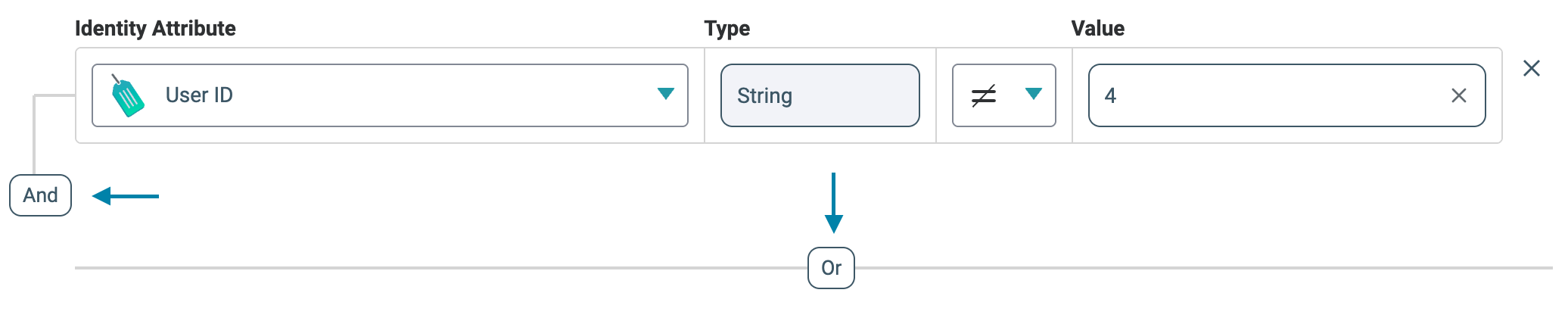
In the Define Dynamic Group Rules section, select an Identity Attribute that is used as the basis upon which Identities are part of the Dynamic Group. For example, an Attribute like Title could be used. The Type field will reflect the type of Attribute based on what was set when the Attribute was created.
-
Select an Operator that determines how the Identity Attribute is related to the Value field. Depending on the Attribute you select, Operator options can include Equals, Not Equals, Contains, Starts with, Ends with, In and Not In.
-
In the Value field, specify the value for this Dynamic Group. For example, if you wanted to create a Dynamic Group for all employees in a bank, you could use an Attribute Branch Number, and then in the Value field, supply the Branch Number.
-
To add an additional Rule, click And or Or and enter additional Attributes and Values.
-
Click Create. The Dynamic Group Settings screen is displayed, showing you the details of the new group.
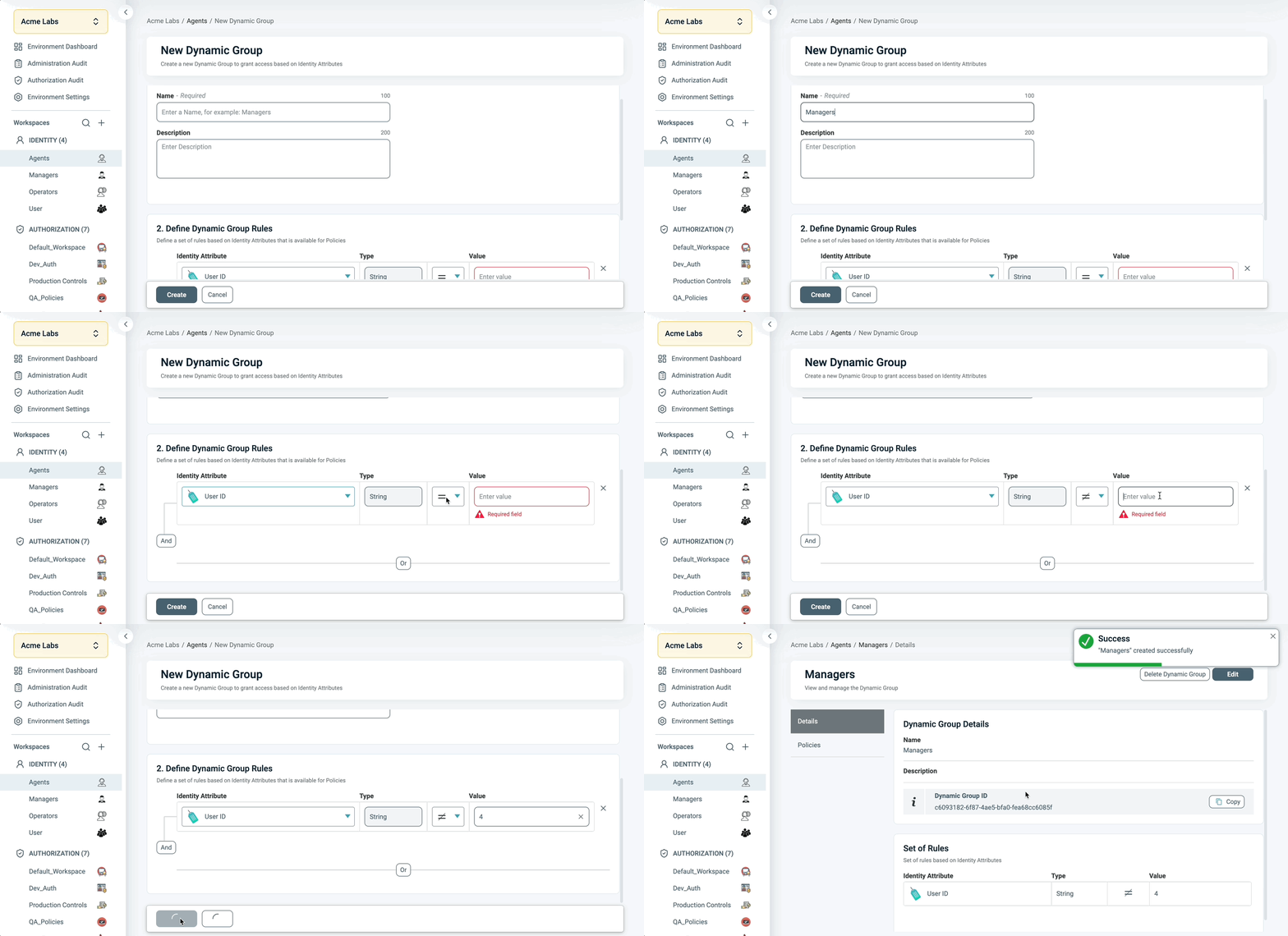
When you return to the Identities Workspace view, you can see that the new group has been added to the Dynamic Groups list.
For more information, see Managing Dynamic Groups.
Modifying a Dynamic Group
To edit or delete a Dynamic Group:
- Click on an Identities Workspace.
- The Dynamic Group screen opens. Select the relevant group to modify.
- On the top right, select Edit or Delete this Dynamic Group.