When a new Environment is created, by default, one Identities Workspace and one Policies Workspace are created.
There are three types of Workspaces.
- Identities Workspace: displays the defined Identities Workspaces, including their Dynamic Groups.
- Policies Workspace: displays the available Policies Workspaces, including Applications and Policies.
- Integration Workspace: displays the Policy Orchestration Points (POP) if a POP is configured. For more information, see Managing the Orchestration Workspace.
Note that Environment Admins can create new Workspaces while users with Workspace Admin and Viewer Permissions can see Workspaces but cannot create them.
About Multiple Identity Workspaces
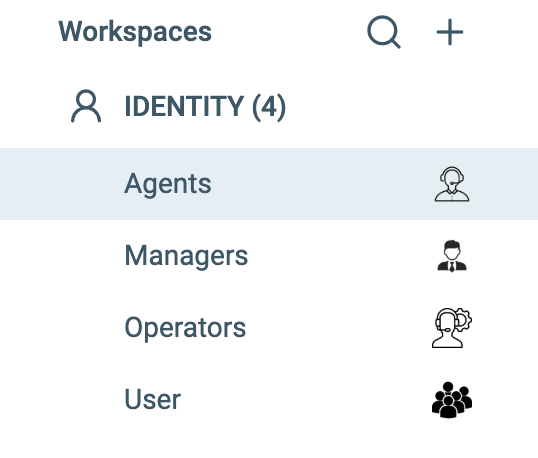
In the Identity Workspace, you can create and manage Dynamic Groups that are used to apply Policies created in the Policies Workspace. Creating multiple Identities Workspaces enables you to define multiple Main Identity Sources within the Platform so that different types of users (for example, the internal workforce, outside contractors, partners, etc.) can be assigned different access permissions to the organization's Applications and Assets.
Multiple Identities Workspaces support separation of duties by allowing different Identity Types to be managed separately from within the Platform.
About Multiple Authorization Workspaces
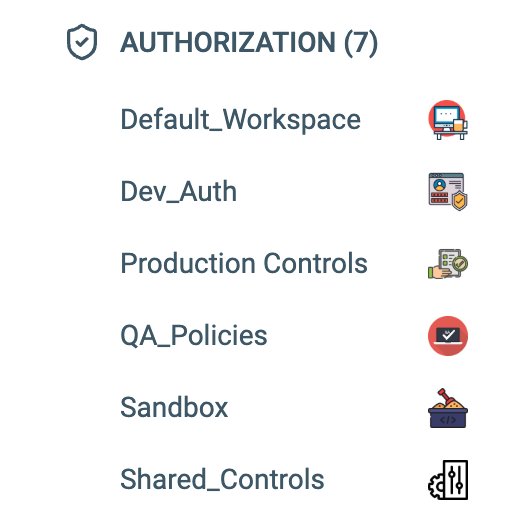
In the Authorization Workspace, you can create and manage the objects used in Policies (Asset Types, Assets, Rulesets, Conditions, Applications, etc.), as well as the Policies themselves. In certain cases, different people will need to manage different sets of Policies, for example, manage separate Applications, create and manage Policies for separate lines of business.
Multiple Authorization Workspaces support separation of duties by allowing different owners to manage only the Polices relevant to their areas of responsibility.
Creating a New Workspace
To create a new Workspace:
- Ensure the Environment side panel is open by clicking on Manage.
- In the Environment side panel, click on the + button next to Workspaces.
- Choose the desired Workspace type.
- Input a Workspace name and click Create. The new Workspace opens upon creating it.
Editing Workspace Settings
To edit the Workspace Settings:
-
Click the Workspace settings icon

-
Click Details. The Details tab is displayed.
-
Click Edit. Fields that can be edited are highlighted.
-
After you make changes, click Save.
Deleting a Workspace
To delete a Workspace
- Click the Workspace settings icon
- Click Details. The Details tab is displayed.
- Depending on the Workspace type, click on the Delete Identity/Authorization/Orchestration Workspace.
- A confirmation message appears. Check the Confirm Delete checkbox, and click Delete.