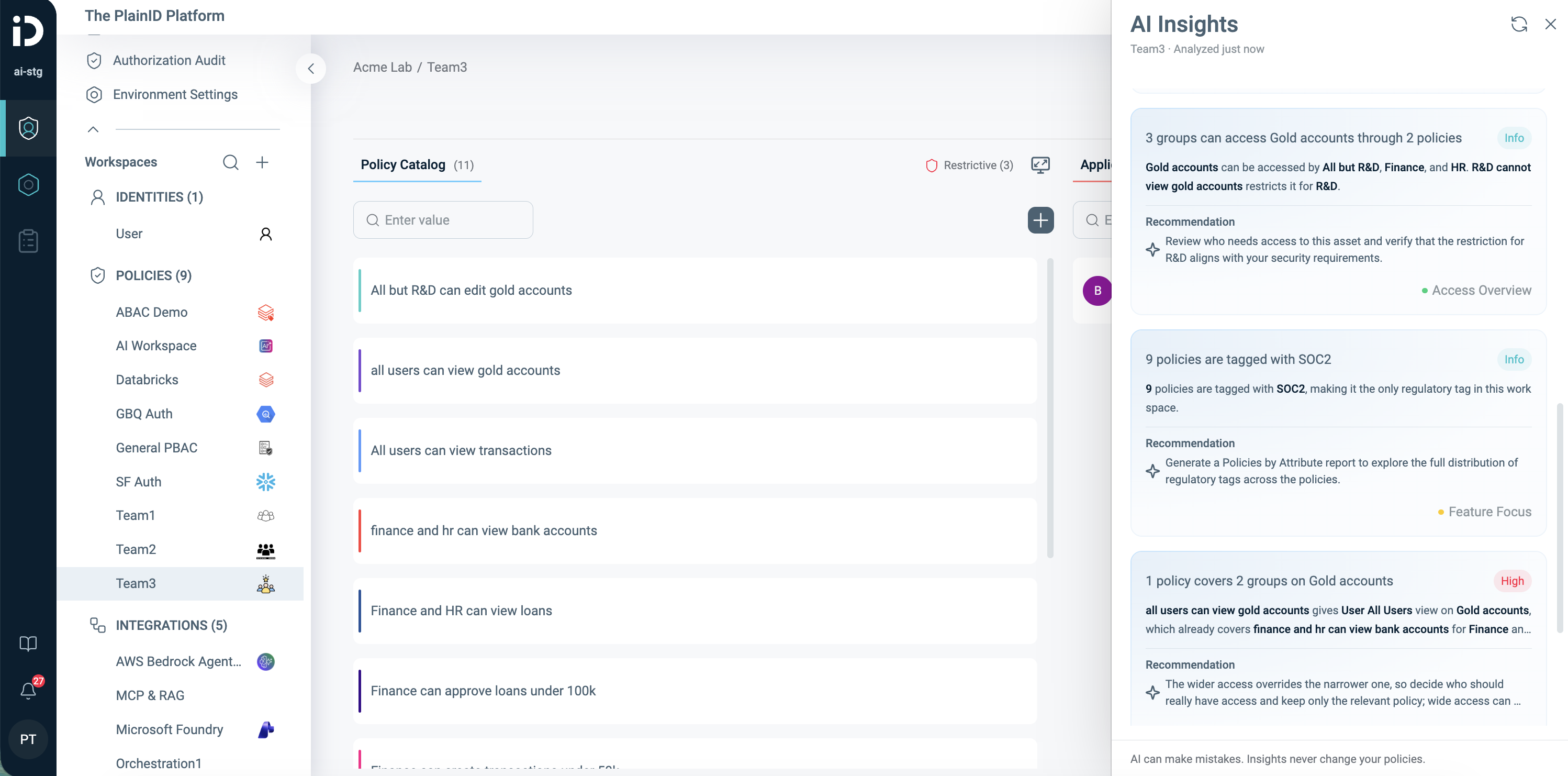
AI Policy Insights analyzes policies and their related managed objects to provide a comprehensive overview and better visibility into your workspace's access logic. It identifies duplicate, overlapping, or conflicting policies, highlights overly broad access, and recommends actionable next steps for each finding.
Available Insights
Explore insights across key areas:
| Insight | What You Can Discover |
|---|---|
| Policy Landscape | A quick overview of your Policies' status, types, and overall distribution. |
| Unused Building Blocks | Rulesets and Conditions that are no longer used. |
| Access Visibility | Who can access what resources across multiple policies. |
| Broad Access Exposure | Policies that apply to all users and may require closer review. |
| Conflicting Access Logic | Policies with contradicting logic that may lead to unexpected access behavior. |
| Overlapping Permissions | Policies that grant the same permissions to groups with overlapping access. |
| Duplicate Policies | Identical access permissions across policies and reduce unnecessary complexity. |
| Policy Optimization | Opportunities to consolidate policies that share the same logic. |
| New Platform Capabilities | Platform capabilities that can help you simplify and manage your policies. |
Insights are organized by category and severity to help you easily identify and prioritize findings.
Viewing AI Policy Insights
Policy Insights are generated at the Policy workspace level based on user permissions. Each analysis covers only the workspace you run it in.
Policy Insights are available only when AI capabilities are enabled for your Tenant.
For more information on AI capabilities and how to enable it for your Tenant, see AI Platform Capabilities.
To view Policy Insights:
- Open a Policies Workspace
- In the Workspace header, click AI Insights.
- A side panel opens, displaying the available insights and the analysis date and time.
- While the analysis is running, you can close the panel and continue working in your workspace.
- Results stay available until you leave the workspace or refresh the page. After that, opening the panel runs a new analysis.
- Once the analysis is complete, reopen the panel to review the insights.
- To run a new analysis, click Analyze again.
Notes
- AI can make mistakes. Review each finding before you change a Policy.
- Card wording can differ slightly between runs, even when the workspace hasn't changed.